
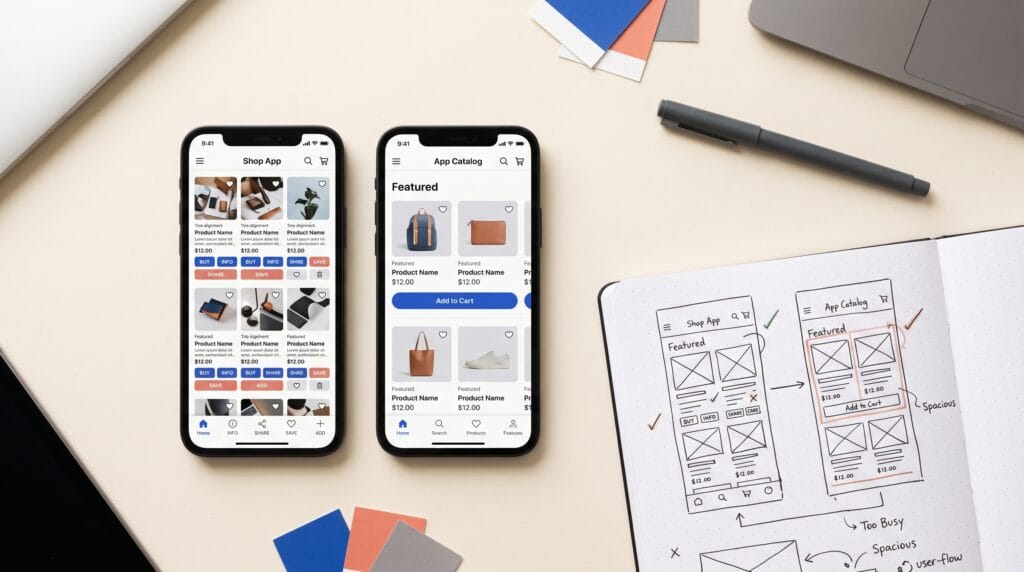
Mobile app layout mistakes can turn a useful product into a frustrating experience. When navigation is unclear, controls are difficult to tap, or important information disappears behind other elements, people must work harder to complete simple tasks. A polished appearance helps, but the arrangement of content and actions needs to support what users actually want to do.
Consider a shopping app where product options sit far from the purchase button. The screen might look elegant, yet customers have to scroll repeatedly to confirm their choice.
This guide explains common problems and practical fixes. Use it to review individual screens and the complete journeys connecting them.
1. Mobile App Layout Mistakes That Weaken Visual Hierarchy
A screen becomes difficult to scan when every card, heading, and button demands the same attention.
Users may struggle to identify the next step because the interface offers no clear reading order.
For example, a booking screen should make the selected service, appointment details, and confirmation action easy to distinguish.
Fixing Visual Hierarchy in Mobile Layouts
Start by identifying the main task. Then decide which information supports that task and which details can remain secondary.
Use size, weight, placement, and spacing to establish relationships. Keep the primary action prominent without making every supporting control disappear.
These mobile app layout mistakes are easier to spot when you review the screen without explaining it aloud. Can someone identify its purpose and likely next action?
2. Mobile App Layout Mistakes That Create Crowded Screens
Trying to display everything at once can create dense screens with little separation between ideas.
Notifications, promotional banners, statistics, and shortcuts may compete with the content people opened the app to find.
Removing useful information is not always necessary. Better prioritization may be enough.
Grouping Content With Purposeful Spacing
Place related items close together and separate distinct sections clearly. Use consistent margins so the layout feels organized.
For a delivery app, group the address, delivery instructions, and contact details according to their roles.
Avoid adding empty space without considering the task. Excessive gaps can also make related information feel disconnected.
Address mobile app layout mistakes by improving grouping first, then adjusting density according to what users need to compare or complete.
3. Mobile App Layout Mistakes That Make Controls Hard to Tap
A small icon can look neat while offering an uncomfortable interaction area.
Closely packed controls also increase the chance of selecting a neighboring action, especially when users move quickly or hold the device in one hand.
Reviewing Touch Targets and Separation
Distinguish the visible icon from its complete interactive area. Padding can provide a larger target without requiring a larger symbol.
Give neighboring actions sufficient separation and verify the actual target areas in the implementation.
Fixing mobile app layout mistakes requires testing interaction, not simply checking how large an icon looks in a mockup.
4. Mobile App Layout Mistakes That Confuse Navigation
Navigation becomes confusing when labels are vague, important destinations move between screens, or similar icons represent different functions.
A user should not have to memorize the interface before understanding where to go.
For example, a symbol that suggests saved items should not open an unrelated promotional page.
Making Navigation Easier to Understand
Use labels that match the destination. Keep recurring navigation in predictable locations and indicate the current section.
Distinguish moving to another area from performing an action. “Orders” opens a destination, while “Place order” completes a task.
Check what happens when users return from a detail screen. Preserving useful context, such as a previous search, can make the journey easier to continue.
These mobile app layout mistakes often appear between screens rather than within one attractive composition.
Also Read: Website Layout Inspiration for Beautiful and Functional Pages
5. Mobile App Layout Mistakes Across Different Screen Sizes
A layout that works on your preferred device may break when space changes.
Longer translations, enlarged text, split-screen use, or a different orientation can expose assumptions hidden in the original design.
Buttons may overlap, labels may truncate, and essential details may fall outside the visible area.
Testing Flexible Mobile Screen Layouts
Let containers respond to content rather than forcing every element into a fixed height.
Test long labels, realistic content, and larger text settings. Decide when a row should wrap or become a vertical stack.
On larger displays, consider whether an additional pane would help rather than stretching a narrow layout across the entire width.
Prevent mobile app layout mistakes by treating adaptability as part of the initial structure instead of a final adjustment.
6. How Overlays Hide Important Information
Sticky buttons, bottom sheets, banners, and keyboards can cover the content needed to finish a task.
A form may appear usable until the keyboard opens and hides the active field or validation message.
Similarly, a fixed purchase bar can obscure the final product option.
Checking Keyboard and Overlay Behavior
Review the screen with the keyboard visible, not only in its default state.
Make sure users can reach the active field, read feedback, and continue through the form. Account for system areas and device cutouts.
When adding a fixed control, provide enough space for the content beneath it to remain accessible.
These mobile app layout mistakes require realistic interaction previews. A static screenshot cannot show every obstruction that appears during use.
7. Mobile App Layout Mistakes That Make Forms Harder to Complete
Forms become harder to complete when labels, instructions, errors, and inputs are visually disconnected.
Placeholder text alone can also leave people without a visible label after they enter a value.
A vague error at the top of a long form may provide little help with the field that needs attention.
Keeping Form Guidance Close to the Task
Keep labels visible and place relevant instructions near their inputs.
Show specific errors beside the affected field. Explain what needs correction, such as entering a complete email address.
Preserve valid entries when another field fails. Avoid making users repeat work unnecessarily.
When reviewing mobile app layout mistakes, follow the entire form journey: empty fields, active input, invalid values, correction, and successful submission.
Also Read: How to Create a Better Website Layout Design from Scratch
8. Why Loading, Empty, and Error States Need Clear Layouts
Designing only the ideal content screen leaves major parts of the experience unresolved.
What appears before information loads? What happens when the list is empty, a connection fails, or a request succeeds?
Without planned states, the layout can jump unexpectedly or leave users unsure what happened.
Designing Loading, Empty, and Error States
Create state variations for important screens.
An empty saved-items list can explain how to add something. A failed request should provide useful context and an appropriate retry action.
Avoid showing a success message before the action has actually completed.
Use stable structures where practical so loading does not repeatedly move controls.
These mobile app layout mistakes are easy to overlook in presentations, but users encounter them during ordinary operation.
9. Mobile App Layout Mistakes That Affect Accessibility
A layout can look understandable while remaining unclear through a screen reader or alternative input method.
Color-only status indicators, unlabeled controls, and an illogical reading order can leave essential information inaccessible.
Reviewing Accessibility Beyond the Screenshot
Pair meaningful status colors with text or another clear indicator.
Check that controls have understandable accessible names and that the reading order follows the task logically.
A visually rearranged layout should not create a confusing sequence for assistive technology.
Discuss these requirements with developers early. Design annotations should explain what a control does and how important states are communicated.
Addressing mobile app layout mistakes means considering different ways people perceive and operate the interface.
How to Review Mobile App Layout Mistakes With Real Tasks
Choose a specific journey, such as finding a product, changing a booking, or updating an address.
Ask participants to complete it without explaining the interface beforehand. Observe hesitation, repeated taps, missed information, and recovery from errors.
Record the context of each problem instead of treating every pause as proof of failure.
Prioritize issues that block completion or cause incorrect actions. Then revise the layout and test the affected journey again.
Combine these observations with implementation checks. A clickable prototype can reveal navigation problems, while keyboard behavior and assistive technology need appropriate testing in the working app.
Also Read: Homepage Design Structure for Better UX and Engagement
Conclusion – Make the Layout Support the Task
Mobile app layout mistakes often come from decisions that look reasonable in isolation but create friction during a complete journey.
Clear hierarchy, comfortable targets, predictable navigation, and flexible content groups help people understand what to do. Thoughtful forms and interface states help them continue when circumstances change.
Begin with the screen or journey where users face the greatest difficulty. Review realistic content, test the interactions, and improve the arrangement around the task.
A useful mobile layout makes the next step clear and keeps the necessary information within reach.
For high-quality fonts to boost your income, check out Letter Crafted. Our professional fonts are perfect for branding, marketing, and content creation. So, don’t miss this opportunity.