
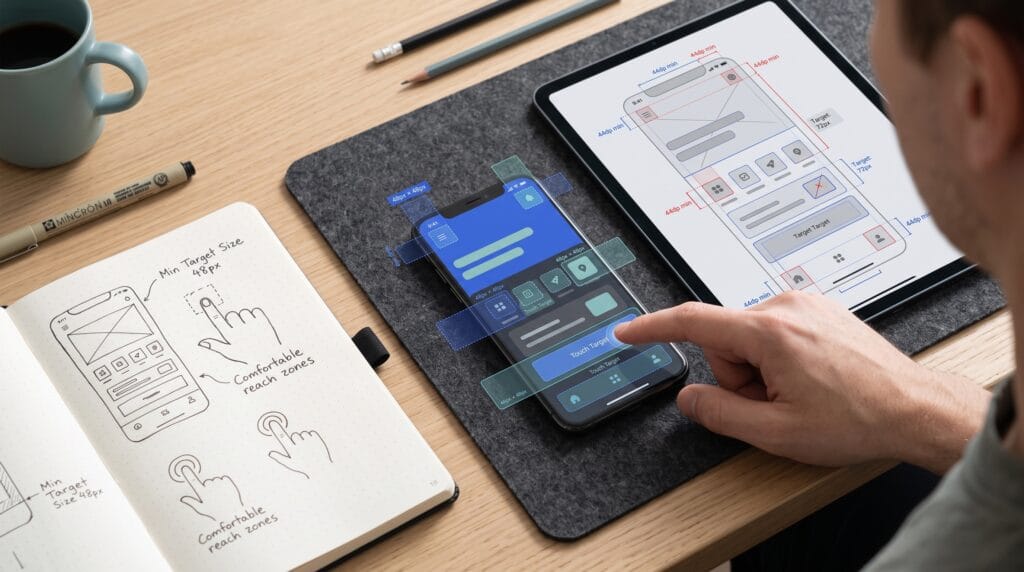
Touch target size affects how easily people can select buttons, icons, links, and other controls on a touchscreen. A control can look attractive in a design file yet remain difficult to activate when someone uses a finger. Testing the actual interactive area helps you identify missed taps and accidental selections before the design reaches development.
A small icon does not necessarily mean a small target. The tappable area may include padding or an invisible container around the symbol.
This guide explains how to measure that area, inspect neighboring controls, and test realistic tasks. It also clarifies what a prototype can demonstrate and what needs verification in the working product.
1. Understand What Touch Target Size Measures
A touch target is the area that responds to a relevant touch interaction.
It may be larger than the visible artwork. For example, a compact bookmark icon can sit inside a wider button container.
However, a large decorative container does not automatically make everything inside it tappable. The interaction must actually cover the intended region.
Visible Controls Versus Interactive Areas
Identify three boundaries:
- The visible symbol or label.
- The button or component container.
- The active area used by the prototype.
These boundaries may match, but they do not have to.
Measure touch target size using the active area. If the prototype links only the icon itself, a generous surrounding card may provide no additional help during testing.
2. Choose the Right Touch Target Size Guidance
Start by identifying the platform and the units your team uses.
Android recommends targets of at least 48 by 48 density-independent pixels, or dp. Apple’s button guidance gives a general rule of at least 44 by 44 points for the hit region.
For web content, WCAG 2.2’s Level AA Target Size (Minimum) criterion specifies 24 by 24 CSS pixels, with exceptions.
Keep Target Measurements in Their Proper Context
These values are not interchangeable physical-pixel measurements. They refer to different platforms, coordinate systems, and types of guidance.
Document which reference your project follows.
Also distinguish meeting a minimum requirement from providing comfortable interaction. Larger targets may be appropriate for important actions or audiences who need more generous controls.
Treat touch target size guidance as a starting point for design review, then test the actual experience.
3. Measure Touch Target Size in the Design File
Select each interactive component and inspect its width and height.
Do not stop at the visible icon. Check whether the active layer includes the intended padding.
For an Android prototype, a 24dp icon placed inside a 48dp square interactive container can preserve a compact appearance while providing the recommended target dimensions.
Create a Target Overlay for Review
Add a temporary outline or translucent fill to show the complete interactive area.
Use a consistent overlay style across the screen so small targets stand out during review.
Check whether resized component instances preserve their target dimensions. A compact variant may accidentally reduce the active area along with its artwork.
Record touch target size in the relevant platform units, and note any assumptions about how the design file maps to the implemented interface.
4. Review Touch Target Size Alongside Spacing
A target can be large enough while still sitting uncomfortably close to another action.
An expanded invisible region can also overlap a neighboring control. In that case, the effective behavior may depend on which element receives the interaction.
Check Neighboring Targets Carefully
Inspect navigation items, quantity controls, calendar cells, and closely arranged icons.
Look at the full active regions rather than the distance between visible symbols.
For the WCAG spacing exception, imagine a 24 CSS pixel diameter circle centered on each undersized target’s bounding box. It must not intersect another target or the corresponding circle of another undersized target.
This is not a universal instruction to add a 24-pixel gap between all controls.
Review touch target size and separation together. Clearly assigned areas are easier to test and explain to developers.
Also Read: UI UX Consistency for More Professional Interfaces
5. Configure Prototype Interactions Accurately
A prototype may accidentally make a control easier to activate than the proposed implementation.
For example, linking an entire screen to the next step hides the difficulty of tapping its small continue button.
The opposite can happen when only a narrow label is linked inside a larger intended button.
Match Hotspots to the Intended Touch Targets
Attach the interaction to the correct container. Remove duplicate hotspots that create misleading behavior.
If a whole row should be selectable, make that intention explicit. When the row includes a separate action, define how its region differs from the main row target.
Check touch target size again after linking the prototype. The active hotspot, rather than the component’s appearance, determines what users can activate during the test.
6. Test Touch Target Size on an Actual Device
Mouse clicks provide useful information about flow, but they do not reproduce finger interaction.
Open the prototype on a device representative of the intended experience.
Confirm that the preview uses the expected frame dimensions and scaling. A shrunken or enlarged preview can change the apparent comfort of the controls.
Review Realistic Viewing and Holding Conditions
Ask participants to hold the device naturally. Observe which areas they reach comfortably and whether they change their grip.
Include relevant screen sizes and text settings where the prototype supports them.
Avoid requiring awkward conditions simply to make the test difficult. Choose circumstances that reflect normal use of the product.
Testing touch target size on-device helps reveal problems that remain invisible when a designer clicks through a desktop preview.
7. Use Real Tasks to Evaluate Touch Target Size
Give participants a goal rather than naming the control they should tap.
For example, ask them to save a product, change a quantity, or select a delivery date.
This reveals whether the target is understandable as well as physically usable.
Observe Taps Without Coaching
Look for:
- Taps near the intended target that produce no response.
- Accidental activation of neighboring controls.
- Repeated attempts before success.
- Changes in grip before reaching an action.
- Uncertainty about whether a tap registered.
Ask what happened after the attempt instead of immediately correcting the participant.
A missed tap does not always indicate a touch target size problem. Unclear labels, delayed feedback, or prototype errors can produce similar behavior.
Also Read: UX Design Tools You Should Know for Better Results
8. Separate Touch Target Size From Other Usability Issues
Before enlarging a control, identify the likely cause of the difficulty.
If participants tap the correct area but receive no visible response, the problem may be missing feedback.
If they consistently choose another control, the label or visual hierarchy may be unclear.
Diagnose Before Changing the Component
Compare the interaction boundary with the observed tap location.
Check whether the prototype hotspot behaves as expected and whether the next state loads reliably.
Then review size, spacing, position, and meaning as separate factors.
Changing touch target size may help, but it should not become the automatic solution to every hesitation. A clearer label or a better location may address the issue more directly.
9. Document Touch Target Size Findings Clearly
A useful finding explains where the problem occurred, what the participant attempted, and what happened.
Include an annotated screen showing the active area and nearby controls.
Write Findings Developers Can Act On
Record:
- Screen and component name.
- Target dimensions and units.
- Relevant guidance.
- Observed behavior.
- Proposed adjustment.
- Any implementation question.
For example: “The remove-item icon uses a 24dp hotspot beside the quantity control. A participant activated quantity instead. Expand the remove action to a separate 48dp target and review spacing.”
Keep touch target size findings specific. Avoid broad statements such as “the buttons are inaccessible” when the evidence concerns one component and a limited test.
10. Verify Touch Target Size After Development
A design file cannot prove the dimensions or behavior of the final implementation.
Framework defaults, custom components, clipping, and layout changes can alter the effective interactive area.
The prototype may also lack the operating system behavior that users encounter in the finished product.
Combine Measurement With Implementation Testing
Ask developers to confirm the actual hit regions. Use appropriate platform inspection tools and repeat the relevant tasks in the working interface.
Check screen readers and other input methods separately; generous targets do not establish complete accessibility.
Review the control with realistic content, scrolling, and overlays present.
Verify touch target size again when component variants or layouts change. Passing an early prototype review does not guarantee that every later implementation behaves identically.
Also Read: Minimalist Web Design Tips for Better User Experience
Conclusion – Test What Users Actually Tap
Touch target size testing connects visual design with practical interaction.
Measure the active region, use guidance appropriate to your platform, inspect neighboring controls, and test realistic tasks on actual devices.
When a problem appears, distinguish size from unclear meaning, missing feedback, or prototype configuration. Document the evidence and verify the adjustment in the working product.
Comfortable controls depend on more than attractive icons. They need dependable interactive areas that people can identify, reach, and activate with confidence.
For high-quality fonts to boost your income, check out Letter Crafted. Our professional fonts are perfect for branding, marketing, and content creation. So, don’t miss this opportunity.