
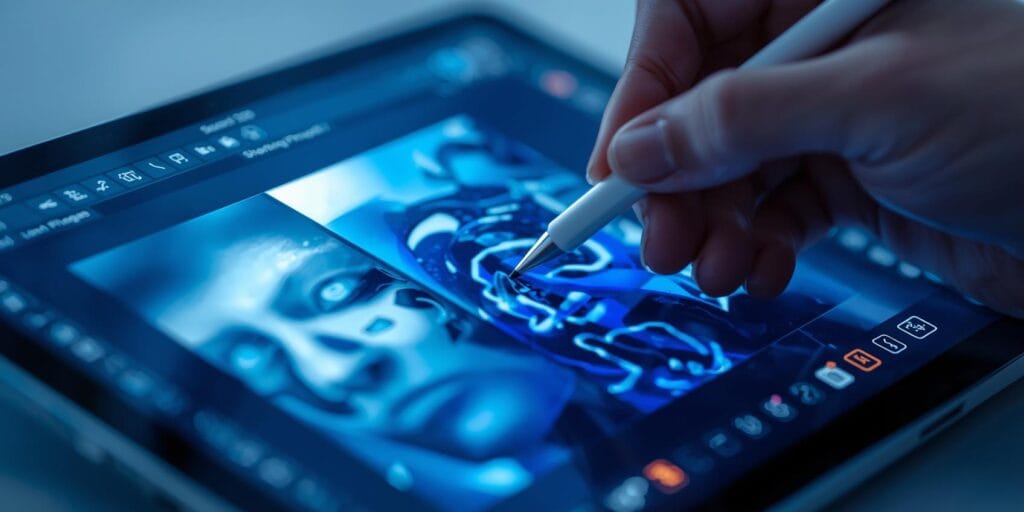
If you want faster edits without sacrificing quality, AI photo editing tools are now the easiest way to get sharper detail and better lighting from everyday shots. They’re especially helpful when you’re dealing with low light, high ISO noise, soft focus, or a photo that is almost great but not quite. The key is choosing the right AI photo editing tools for the job, and using them with a light touch.
This roundup focuses on what creators, photographers, and designers actually need. Sharpness that still looks natural, lighting fixes that feel believable, and workflows that save time without making your photos look “AI-edited.”
AI Photo Editing Tools and What They Fix
Most AI photo editing tools shine in five areas:
Sharpening and deblur for soft focus and slight motion blur
Noise reduction for low light and high ISO
Upscaling and detail recovery for small images or heavy crops
Lighting and color matching for uneven exposure or composites
Object removal and cleanup for distractions and background mess
A good approach is to treat AI like a specialist, not a magic button. Use the strongest tool for the specific problem, then finish with your normal edits.
AI Photo Editing Tools for Sharpening and Deblur
When people say “make it sharper,” they usually mean one of two things recover real detail, or increase contrast so it looks crisp. The best AI photo editing tools do both while avoiding crunchy edges.
Topaz Photo AI for detail recovery and deblur
Topaz Photo AI is built around image quality restoration like deblur, denoise, and upscaling, with an autopilot-style approach that suggests fixes automatically.
Best for: slightly soft photos, mild motion blur, missed focus moments, rescue edits.
Tip: Start low. If you push sharpening too hard, skin textures and hair can look unnatural fast.
Luminar Neo tools for sharpening fast
Luminar Neo includes AI-based sharpening and image quality tools aimed at quick improvement and batch-friendly editing.
Best for: creators who want quick sharpening without building a heavy workflow.
ON1 Photo RAW for an all-in-one editor with AI
ON1 positions Photo RAW as an all-in-one raw editor with AI tools that include sharpening, noise reduction, upscaling, and portrait-focused features.
Best for: freelancers who want one app that covers most needs without bouncing between tools.
AI Photo Editing Tools for Noise Reduction in Low Light
Low-light noise is the quickest way a photo looks “amateur,” especially on skin, gradients, and dark backgrounds. The right AI photo editing tools can clean it up while keeping real texture.
Lightroom Denoise and Enhance features
Adobe’s Enhance options in Lightroom Classic include AI-driven Denoise plus other quality tools like Super Resolution.
Best for: photographers already living in Lightroom who want a clean, consistent workflow.
DxO DeepPRIME for serious RAW noise reduction
DxO’s DeepPRIME is built around machine learning for RAW denoise and demosaicing, aiming to reduce noise while preserving fine detail.
Best for: high ISO work like events, indoor sports, wildlife, concerts, and night scenes.
Luminar NoiselessAI for quick cleanup
Luminar’s NoiselessAI is designed to remove luminance and chroma noise while keeping a natural look across RAW and JPEG.
Best for: fast denoise on creator content where “clean enough” matters more than perfect lab results.
AI Photo Editing Tools for Better Lighting and Realistic Fixes
Lighting problems usually fall into uneven exposure, harsh shadows, mixed color temperature, or a subject that needs a lift without blowing out the background. The latest AI photo editing tools help by making local changes easier and faster.
Photoshop Generative Fill and AI-assisted edits
Photoshop’s Generative Fill lets you add, remove, or modify parts of an image using prompts, which can help rebuild areas, extend backgrounds, or clean up problem zones.
Best for: fixing distracting areas, rebuilding edges after a crop, or repairing backgrounds.
Photoshop compositing help that matches lighting
Recent Photoshop updates have added AI features aimed at making composites blend more naturally by adjusting lighting and color to match the scene.
Best for: designers and creators doing posters, thumbnails, ads, and product scenes.
Practical lighting tip: Use AI for the heavy lifting, but still check shadows. If shadows fall the wrong direction, viewers feel it instantly.
Also Read: Editing Made Easy: The Rise of AI in Photo Enhancement
AI Photo Editing Tools for Upscaling and Detail Recovery
Upscaling is not just about making an image bigger. It’s about recovering detail so it can survive print, cropping, and platform compression. Great AI photo editing tools help most with faces, hair, fabric, and textures.
Topaz upscaling options
Topaz promotes AI upscaling and enhancement tools designed to increase resolution while preserving detail.
Best for: thumbnails, old photos, heavy crops, ecommerce images that need higher clarity.
Lightroom Super Resolution inside Enhance
Adobe’s Enhance set includes Super Resolution as part of its quality workflow.
Best for: photographers who want upscaling without leaving Lightroom.
Luminar Neo Upscale
Luminar Neo includes an upscale tool built for enlarging photos while keeping detail and texture.
Best for: creators who want fast enlargements for social, print-on-demand previews, or client drafts.
AI Photo Editing Tools for Object Removal and Cleanup
This is where AI saves the most time. Removing distractions manually is slow. The right AI photo editing tools can handle it in seconds, then you refine the edges.
Photoshop cleanup with Generative Fill
Great for removing objects and rebuilding the missing background with natural-looking texture.
ON1 Photo RAW Generative Erase
ON1 highlights AI tools including Generative Erase for removing distractions, alongside NoNoise AI and Resize AI.
Tip: After removal, zoom out and check patterns. Repeating textures are the giveaway.
AI Photo Editing Tools for Selective Edits with Smarter Masks
Sharper detail and better lighting often require local control. Masks are the difference between “edited” and “well edited.”
Capture One improvements for masking workflows
Capture One’s updates highlight faster mask workflows like combined masks and improvements for working with multiple masks.
Best for: studio, portrait, product, and commercial work where precise local edits matter.
Also Read: Editing Made Easy: How to Use Content Aware Fill in Photoshop
How to Choose AI Photo Editing Tools Based on Your Work
Here’s a simple way to pick your stack without overbuying:
Creator posting weekly
1 main editor (Lightroom, Luminar Neo, or ON1)
1 specialist for rescue sharpness and upscale (Topaz-style category)
You want speed, consistency, and batch editing.
Photographer delivering to clients
RAW workflow with strong denoise (Lightroom Denoise or DxO’s DeepPRIME)
Clean masking workflow for local fixes (Capture One or Lightroom masks)
You want natural texture and repeatable results.
Designer doing composites and ads
Photoshop for generative cleanup and scene fixes
An upscaler for assets that arrive too small
You want control and believable lighting.
A Simple Workflow for Sharp Images and Better Lighting with AI Photo Editing Tools
Use this workflow when a photo feels “almost there”:
1. Fix noise first
Noise messes with sharpening. Start with denoise using your chosen AI photo editing tools (Lightroom Denoise, DxO’s DeepPRIME, Luminar NoiselessAI).
2. Recover sharpness second
Apply AI sharpening or deblur lightly, then stop early. Over-sharpening is the fastest way to lose a premium look.
3. Improve lighting with local edits
Lift the subject, control highlights, and reduce heavy shadows. Use masks so you don’t brighten everything at once.
4. Remove distractions
Use generative removal for small objects, then refine the edges manually if needed.
5. Upscale only when you must
Upscale at the end, especially if you’re exporting for print or heavy cropping.
This sequence keeps your AI photo editing tools working on clean data, which usually means fewer weird artifacts.
Common Mistakes with AI Photo Editing Tools
Even the best AI photo editing tools can go wrong if you push them too hard:
Over-sharpened skin that looks gritty
Plastic textures from aggressive denoise
Halos around hair and edges
Over-bright subjects that no longer match the scene
Over-clean backgrounds that look fake
A good rule, apply 70 percent of what looks “good” at first glance. Then take a break, come back, and check again.
Also Read: Photoshop AI Made Easy: Remove Backgrounds & Like a Pro
Final Thoughts
The best AI photo editing tools are the ones that fix your biggest pain point, soft focus, ugly noise, or lighting that never looks right. Start with one core editor, add one specialist for sharpness and upscale, keep your edits subtle, and editing pictures like a pro. Subtle is what reads as professional.
For high-quality fonts to boost your income, check out Letter Crafted. Our professional fonts are perfect for branding, marketing, and content creation. So, don’t miss this opportunity.