
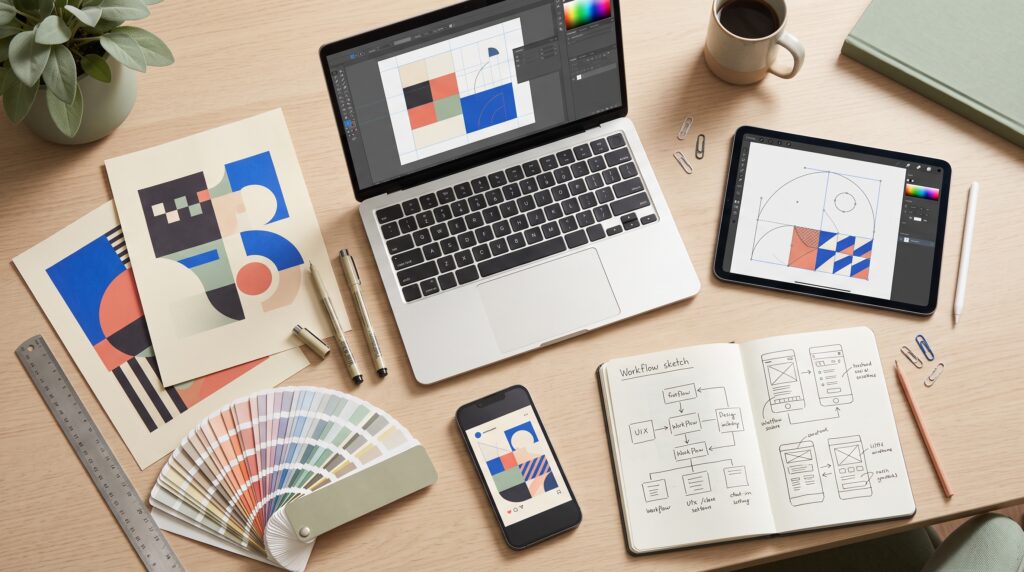
Graphic design apps should help you complete the work you actually create, whether that means social posts, product graphics, illustrations, or client presentations. The most suitable choice depends on your projects, editing needs, devices, and collaboration habits. A popular app may be useful, but popularity alone does not tell you whether it fits your workflow.
A creator producing daily promotional posts has different needs from someone building detailed vector artwork. Both may need dependable exports and reusable files, but the steps behind their work differ.
This guide explains how to compare tools and includes six app recommendations. Use the examples to build a shortlist, then test the options with a realistic project.
Start Choosing Graphic Design Apps With Your Regular Tasks
Before comparing features, list the designs you produce most often.
Include the formats, frequency, and level of customization involved. Creating one original poster each month is different from adapting several campaign graphics every week.
Map Your Creative Workflow
Break a typical project into stages:
- Gathering content and images.
- Building the layout.
- Editing visual elements.
- Reviewing changes.
- Exporting deliverables.
- Organizing reusable files.
Then identify the stage that causes the most difficulty.
Useful graphic design apps should address that problem. If adapting layouts takes too long, reusable templates may matter more than advanced illustration tools. If image editing limits your results, a stronger layout editor alone may not solve it.
Understand the Main Types of Graphic Design Apps
Design tools overlap, but they do not all approach the work in the same way.
Understanding the differences helps you compare relevant capabilities rather than long feature lists.
Match the Tool to the Editing Task
Template-oriented tools can support repeated content production. Raster editors focus on pixel-based images, while vector editors work with paths and shapes that can scale without the same pixelation.
Collaborative design tools emphasize shared files, feedback, and organized layouts.
Some graphic design apps cover several categories, but that does not mean every function offers the same depth.
Decide which kind of editing matters most before evaluating extras. This keeps the shortlist connected to your actual projects.
Canva for Template-Based Content Creation
Consider Canva when your priority is creating and adapting recurring content.
Its social graphic templates provide starting layouts that creators can customize and reuse. This makes it worth evaluating for promotional posts, announcements, and coordinated content series.
Test Canva With a Repeated Design Task
Create a post, then adapt it for another message using your actual content.
Check how comfortably you can replace images, adjust spacing, and maintain consistency.
Among graphic design apps, Canva is a practical candidate for creators who prefer a guided starting point. However, test the level of control you need rather than assuming a template will suit every project.
Review the relevant plan and asset permissions before building your workflow around particular features.
Adobe Express for Everyday Promotional Graphics
Consider Adobe Express when you want to explore quick custom graphics within Adobe’s product family.
Adobe positions Express as a tool for creating custom designs quickly, alongside its more specialized applications. It is worth testing for routine content that does not require extensive image manipulation or detailed vector construction.
Check the Complete Express Workflow
Build an actual announcement or promotional graphic.
Evaluate the process from adding your content to exporting the finished result. If you use other Adobe tools, test the particular file handoffs you expect to rely on.
When comparing graphic design apps, convenience should include the whole process. A fast first draft is less useful if revisions or exports create repeated obstacles.
Also Read: Graphic Design Basics for Beginners Who Want to Design Better
Adobe Photoshop for Image-Heavy Designs
Consider Photoshop when image editing is central to the project.
It is a stronger candidate for evaluating photo-based compositions and detailed image work than a tool chosen mainly for quick templates. Adobe identifies Photoshop as part of its image-editing and graphic-design offering.
Test Photoshop Against Your Editing Needs
Choose a representative image task, such as refining a product composition or combining several visual elements.
Check whether you can organize the working file and revise important elements without rebuilding everything.
Specialist graphic design apps can introduce a learning commitment. Evaluate whether the additional control solves a recurring problem that justifies that effort.
Do not judge the tool only by what an experienced user can produce in a demonstration.
Adobe Illustrator for Custom Vector Artwork
Consider Illustrator when your work depends on scalable shapes and original vector graphics.
It belongs on a shortlist for illustration and graphic work where you need control beyond editing pixels. Adobe includes Illustrator among its graphic-design applications.
Evaluate Vector Editing With a Real Deliverable
Create a small illustration, icon, or graphic element that resembles your usual work.
Test how easily you can adjust its structure, organize related objects, and prepare the required exports.
These graphic design apps should be judged by the deliverables you need. A tool that produces an attractive preview may still be unsuitable if you cannot provide the editable format expected by your team or client.
Figma for Shared Layouts and Collaborative Review
Consider Figma when shared design files and feedback are important to your process.
Figma’s documentation emphasizes file sharing and collaboration. That makes it a useful candidate for teams reviewing layouts together rather than exchanging separate attachments after every revision.
Test Collaboration With Another Person
Invite a colleague to review a realistic file.
Check access permissions, the clarity of feedback, and how easily everyone can identify the current work.
Collaborative graphic design apps should reduce uncertainty about which version needs attention. Also test export requirements separately, particularly if your final deliverables involve print production or another specialized workflow.
Inkscape for Open-Source Vector Design
Consider Inkscape when you want a free, open-source vector editor.
It is available for Windows, macOS, and GNU/Linux, with SVG central to its file workflow. It is worth evaluating for creators who want to develop vector-editing skills without a software subscription.
Test Your Required File Formats
Build a small graphic and export it into the formats you regularly deliver.
If collaborators use different software, check the exchange using an actual file. Confirm that important elements remain usable.
Free graphic design apps still require learning time. Include that effort in your decision rather than evaluating the tool solely by its purchase price.
Also Read: Graphic Design Techniques for Better Layout, Type, and Color
Compare Graphic Design Apps With One Representative Project
A shared test makes differences easier to assess.
Use the same content, images, and intended output in each shortlisted app.
Record What Happens During the Test
Compare:
| Area | What to Check |
|---|---|
| Setup | How quickly can you begin with your own assets? |
| Editing | Can you make the changes your projects require? |
| Reuse | Can you adapt the design without rebuilding it? |
| Review | Can the right people provide clear feedback? |
| Export | Does the result meet delivery requirements? |
| Organization | Can you locate and reopen the source file easily? |
Do not select a winner based only on the first few minutes.
These graphic design apps may become easier with practice, so distinguish unfamiliarity from a missing capability.
Check Costs and Permissions Before Committing
Compare the features available in the specific plan you would use.
Storage, asset access, collaboration, and export options may differ between plans. Verify current details directly with the provider.
Also distinguish access to the app from permission to use every included asset in every context.
Your workflow may involve client work, reusable templates, merchandise, or other outputs with different requirements.
Keep track of where assets came from and which permissions apply.
A low subscription price does not automatically make a tool the least expensive choice if it creates substantial manual work. Likewise, a larger package offers little value when most features remain unused.
Build a Manageable Combination of Graphic Design Apps
You may need more than one tool, but each should have a clear purpose.
For example, one app could handle detailed image preparation while another supports recurring layouts.
Avoid adding tools simply because they overlap with something you already use.
Decide where the master files live, how assets move between applications, and which exports are final.
A small, well-understood combination is easier to maintain than a collection of tools with unclear roles.
Review the setup after several real projects. Keep what helps, address repeated difficulties, and add another application only when the need becomes specific.
Also Read: 7 Essential Elements of Graphic Design for Better Visual Work
Conclusion – Choose Tools That Support Your Actual Work
Graphic design apps are most useful when their capabilities match your projects and the way you prefer to create.
Start with your recurring tasks, shortlist relevant tools, and test a complete deliverable. Consider editing control, collaboration, reusable files, exports, and total effort.
The right choice does not need to cover every possible design activity.
It needs to help you produce dependable work, make revisions comfortably, and maintain a creative process you can use consistently.
For high-quality fonts to boost your income, check out Letter Crafted. Our professional fonts are perfect for branding, marketing, and content creation. So, don’t miss this opportunity.