
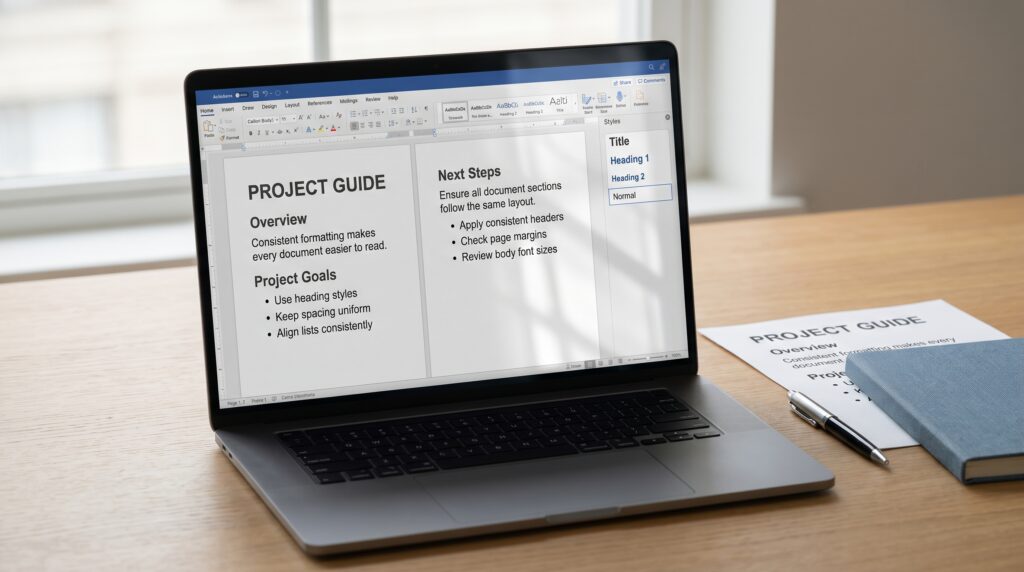
Word document formatting becomes easier to manage when you set clear rules before making individual adjustments. A report can look polished on the first page yet become uneven as people add headings, paste text, and insert tables. Different fonts, unexpected gaps, and changing list indents make the document harder to follow and slower to maintain.
A reliable approach combines reusable styles, sensible page settings, and a final review. You do not need to redesign every paragraph. Instead, establish a small set of decisions and apply them throughout the file. This tutorial explains a practical process for office reports, proposals, meeting notes, and other everyday business documents.
Start With a Word Document Formatting Plan
Before editing, identify the kinds of content your document contains. A typical report might need a title, section headings, body paragraphs, lists, tables, captions, and page numbers.
Assign a consistent appearance to each role. Decide which font to use, how headings should differ, and where extra space belongs.
Keep the plan simple enough to follow. A short internal report rarely needs several decorative fonts or many heading levels.
For example, your working rules might include one body font, three heading levels, consistent paragraph spacing, and one table style. Write those choices down so contributors can follow the same approach.
Use Styles to Control Word Document Formatting
Styles let you apply a named set of formatting choices to a paragraph or selected text. Instead of manually changing every heading, apply the appropriate heading style.
Begin with the styles your document needs most, such as Normal, Title, Heading 1, and Heading 2. Adjust their appearance to suit your organization or project.
Use Heading 1 for major sections and Heading 2 for subsections. Avoid choosing a heading level simply because you like its default size.
Consistent Word document formatting depends on matching styles to content roles. When the design changes, updating the relevant style is more manageable than correcting dozens of separate paragraphs.
Choose Fonts That Support Clear Reading
Select fonts according to the document’s purpose and the people reading it. An internal procedure needs clear, comfortable text more than visual personality.
Start with one dependable family, or a restrained pairing for headings and body copy. Use bold and italics for specific purposes rather than adding new fonts whenever something needs emphasis.
Check numbers, punctuation, and symbols, particularly in reports containing financial or technical information.
Use a consistent body size as a starting point, then inspect an actual page. A size that looks comfortable in one font may feel smaller in another.
Also consider where the file will be opened and whether recipients will have the fonts you selected.
Standardize Paragraph Spacing and Alignment
Uneven spacing often comes from repeated blank paragraphs. These may look acceptable until someone changes the wording or adjusts the page layout.
Set space before and after paragraphs through paragraph formatting or styles. Use that spacing to separate content instead of pressing Enter several times.
For a practice report, try a modest amount of space after body paragraphs and more space before a major heading. Treat the values as starting points and review the result.
Keep alignment consistent, too. Left-aligned body text is a straightforward choice for many office documents.
Reliable Word document formatting uses repeatable settings so that paragraphs respond predictably when the content changes.
Also Read: Content Creation Tutorial for Better Workflow and Creativity
Keep Heading Structure Consistent
Headings should explain the document’s organization before they decorate it. Each level needs a clear role and a recognizable appearance.
Use parallel wording where possible. For example, “Project Background,” “Project Objectives,” and “Project Schedule” create a more consistent pattern than switching unpredictably between questions and labels.
Avoid jumping from a top-level heading directly to a deeply nested level unless the structure genuinely requires it.
Check the Navigation Pane to review the heading outline. A heading that is missing from the outline may need the correct style.
Good Word document formatting makes section relationships clear both on the page and in the document’s structure.
Control Pasted Text Before It Spreads
Pasted material can introduce fonts, paragraph settings, hyperlinks, and list formatting from another document or webpage.
Choose a paste option that fits the task. When you need only the words, a text-only option can provide a clean starting point. When structure matters, inspect the result before continuing.
Apply your document’s styles to the imported content. Check lists and tables separately because they may require additional adjustments.
Do not assume text is consistent because it looks similar at first glance.
Protecting Word document formatting is easier when you review each imported section immediately rather than searching for differences throughout a nearly finished report.
Format Lists With Built-In List Controls
Lists become difficult to edit when numbers, bullets, and indents are typed manually. Use Word’s list tools to establish a consistent structure.
Choose bullets for related items without a required sequence. Use numbering when order matters, such as instructions or a procedure.
Keep the distance between the marker and the text consistent. Review wrapped lines so they align with the item’s text rather than its bullet or number.
For numbered headings, use a structured multilevel list linked to heading styles instead of typing section numbers yourself.
Consistent Word document formatting helps lists remain readable when items move, new steps appear, or a sentence grows longer.
Make Tables Follow the Same Design Rules
Tables should look connected to the rest of the report. Use a consistent header treatment, restrained borders, and readable cell text.
Avoid introducing a different font just because information appears inside a table. Adjust spacing and column widths before reducing text to an uncomfortable size.
Align information according to its purpose. Labels usually need a clear reading edge, while comparable numbers should use a consistent alignment and number format.
For longer tables, review how rows and headings behave across pages.
Effective Word document formatting gives readers predictable patterns. If several tables serve the same purpose, their headers, captions, and spacing should follow the same approach.
Also Read: Google Analytics Tutorial for Better Marketing Results
Manage Page Layout Without Manual Workarounds
Repeated spaces and blank paragraphs are unreliable tools for controlling page layout. A small edit can push them into unexpected positions.
Set margins deliberately and use page breaks when a section genuinely needs to start on a new page. Use section breaks when the document requires a change such as a different orientation or header arrangement.
Review paragraph pagination settings when headings become separated from the text they introduce.
If a document suddenly develops a large gap, turn on formatting marks and inspect the area before deleting content.
Stable Word document formatting comes from identifying the underlying setting rather than adding more manual adjustments to compensate.
Keep Headers, Footers, and Page Numbers Consistent
Headers and footers provide repeated information, so small differences are especially noticeable. Decide what belongs there and keep the content useful.
A report might need a short title in the header and a page number in the footer. Avoid repeating so much information that the page feels crowded.
Use automatic page numbering rather than typing numbers on individual pages.
When section breaks are present, check whether headers and footers should remain connected to the previous section. Also review first-page differences.
Consistent Word document formatting includes the document’s edges, not only its main text. Check them after making changes to the overall layout.
Build a Reusable Word Document Formatting Template
Once your document works well, create a clean starting file for similar projects. Include the styles, margins, page-number setup, and common table design.
Remove old client names, comments, tracked changes, and outdated content before reusing it.
Add brief placeholder instructions where they help. For example, tell contributors which heading style to apply or where to enter the report date.
A useful template reduces repeated decisions without forcing every project into an unsuitable structure.
Review the template occasionally. If people repeatedly make the same legitimate adjustment, consider whether the starting design needs to change.
Review Word Document Formatting Before Sharing
A final check should test the document as a complete piece of work.
Inspect Formatting Marks and Structure
Display formatting marks to locate repeated blank paragraphs, unnecessary tabs, and unexpected breaks.
Then review the heading outline and confirm that sections appear in the intended order. Fix the cause of an issue rather than hiding it with extra spaces.
Check Pages in Print Layout
Look through the document at a full-page view. Watch for isolated headings, uneven white space, crowded tables, and inconsistent captions.
Also inspect representative paragraphs closely. A page-level scan can miss small changes in font or spacing.
Review the Final Delivery Format
Save the editable file and inspect any exported PDF separately. Check page numbers, links, line breaks, and table boundaries.
If recipients will edit the Word file, provide that version with clear instructions. Name the approved file so it is easy to distinguish from drafts.
Also Read: How to Make Pinterest Pins That Get More Clicks and Saves
Conclusion – Make Consistency Part of Your Working Process
Consistent Word document formatting begins with a few clear decisions and continues through everyday editing habits. Use styles, manage pasted content carefully, and let paragraph and page settings handle layout.
Start with one report you use regularly. Correct its recurring problems, then turn the improved version into a reusable starting point.
Over time, the benefit is practical fewer formatting repairs, clearer documents, and an easier handoff when someone else needs to update your work.
For high-quality fonts to boost your income, check out Letter Crafted. Our professional fonts are perfect for branding, marketing, and content creation. So, don’t miss this opportunity.