
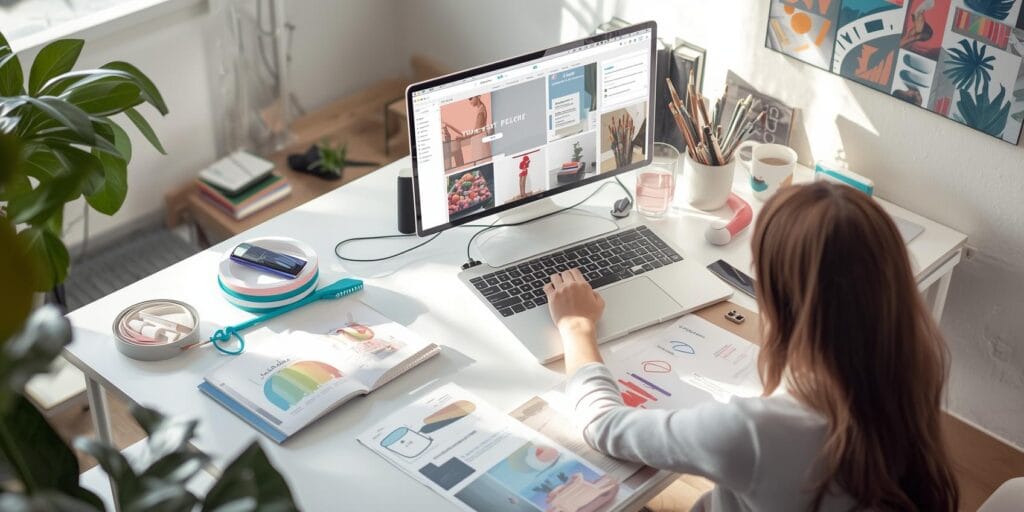
If you’re launching a new product this year, your biggest enemy is not talent. It’s time. You need good visuals, clear messaging, and consistent branding across every platform, all while you’re still finishing inventory, pricing, and shipping details. That’s why Canva AI 2026 is so useful for small businesses and can be strategies in leveraging AI. With the right workflow, Canva AI 2026 helps you build a complete launch pack that looks consistent, feels professional, and is ready to publish.
In this tutorial, you’ll create a practical launch pack step by step. You’ll produce a hero graphic, social posts, story templates, ad creatives, a simple email header, product highlight slides, and a few reusable templates. The goal is not to make one beautiful design. The goal is to use Canva AI 2026 to create a full set that sells your product clearly.
What a “Launch Pack” Includes for Small Businesses
Before you open Canva, decide what “done” looks like. A launch pack is a set of ready-to-use assets that you can post, schedule, and reuse.
Here’s a solid launch pack checklist for most small brands:
1 hero launch graphic (main announcement)
3-5 feed posts (features, benefits, pricing, social proof)
5-10 story templates (countdown, behind the scenes, FAQ, review)
2-4 ad variations (different headlines and layouts)
1 product sheet or mini flyer (digital or printable)
1 email header + 1 promo banner
1-3 short slides (for reels cover, pitch deck, or marketplace listing)
A reusable template set for future launches
The magic comes from consistency. Canva AI 2026 makes it easier to keep typography, spacing, colors, and layout aligned across all those formats.
Canva AI 2026 Setup for a Clean, Consistent Brand Kit
A launch pack gets messy fast if you don’t start with a system. So your first job is to set up your brand basics.
Create a mini brand kit in Canva
In Canva AI 2026, start by locking these items:
Brand colors (primary, secondary, neutral)
Font pairing (headline, body, accent)
Logo files (main, icon, light/dark)
Photo style (warm, clean, minimal, bold, etc.)
Button style and shape rules (rounded, sharp, thin outline, etc.)
If you already have brand colors and fonts, perfect. If not, use Canva AI 2026 to generate a quick starting direction, then edit it to match your product and audience.
Build a “Launch Pack” folder structure
Save time later by organizing now:
- Launch Message
Hero
Feed Posts
Stories
Ads
- Design Simple Product
Email + Web Banners
Templates
Small step, big payoff. When you use Canva AI 2026 at speed, organization keeps quality high.
1. Write Your Launch Message using Canva AI 2026
Design comes after clarity. Start by writing what you’re actually launching.
Use Canva AI 2026 to draft:
A one-line product promise
3 key benefits
5 feature bullets
A short “why it matters” paragraph
A call to action (Shop now, Pre-order, Join waitlist, DM to order)
Here’s a simple formula that works:
For (audience), (product) helps you (result) without (pain).
Example:
“For busy home bakers, our label kit helps you package beautifully without spending hours on design.”
Keep your wording short. The launch pack will reuse these lines across posts, ads, and stories, and Canva AI 2026 works best when you feed it clear, specific inputs.
2. Create Your Hero Launch Graphic in Canva AI 2026
Your hero graphic is the main “announcement” visual. It can be used on Instagram, Facebook, WhatsApp, and even your marketplace cover image.
What to include
Product name
Main benefit or promise
Launch date or availability
One strong product photo or mockup
Brand mark (logo or icon)
Clear CTA line
Make it in Canva
Use a clean template and customize it, or build from scratch. Let Canva AI 2026 help with layout suggestions if your text feels crowded.
Pro tip: Build the hero first, then clone it to create the rest. This is the fastest way to keep a consistent design system in Canva AI 2026.
3. Build 5 Feed Posts with Canva AI 2026
Now you’ll create a small feed set that covers what people need to buy.
Launch announcement
Use your hero design or a simplified version.
Top benefits
Headline + 3 benefit blocks. Keep it scannable.
Key features
Use icons, bullets, or a simple grid.
Price + offer
Price, bundle options, and a clean CTA.
Proof or trust
Customer quote, review, or “why we made this” story.
In Canva AI 2026, duplicate your first feed post and swap content. Keep the same margins and font sizes. Change only what you must.
Also Read: Canva Font Pairings Made Easy: Stunning Combinations That Pop
4. Create Story Templates for Daily Launch Content with Canva AI 2026
Stories sell because they feel personal and fast. Your job is to create reusable story frames so you can post daily without redesigning every time.
Story template ideas
Countdown story
New product teaser
Behind-the-scenes
“This or that” poll
FAQ answers
Testimonial story
Limited stock warning
How to order steps
UGC repost frame
Use Canva AI 2026 to generate variations of the same story layout. Then lock the background, fonts, and spacing so you only replace text and photos later.
5. Make Ad Creatives with Multiple Hooks in Canva AI 2026
Ads need variety. One design is never enough. Your goal is 2-4 variations with different headlines, same branding.
4 ad hooks you can test
Problem hook: “Tired of messy packaging?”
Result hook: “Launch-ready in one day.”
Offer hook: “Bundle deal this week only.”
Social proof hook: “Loved by 1,000+ customers.”
In Canva AI 2026, create one ad layout, then duplicate and replace only the headline + image crop. Keep everything else the same. This makes your ads feel like one campaign, not random posts.
6. Design a Simple Product Sheet or Mini Flyer in Canva AI 2026
A product sheet works great for:
Include:
Product photo
Key benefits
What’s included
Price
Order steps
Contact / link
With Canva AI 2026, use a clean A4 template. Keep the design airy. White space makes your product look premium.
7. Create Email and Web Banners that Match The Pack with Canva AI 2026
Even if you don’t do email marketing, one header banner is useful for:
Email newsletter
Website hero section
Shopify banner
Link-in-bio page header
Marketplace “storefront” image
Build:
One email header (wide, simple)
One website banner (hero style)
One promo strip (short banner for deals)
Again, the key is consistency. Canva AI 2026 makes resizing easier, but you still need to keep the hierarchy: headline first, product second, CTA last.
8. Turn Everything Into Reusable Templates
This is the step most small businesses skip, then regret later.
When your launch ends, convert your best designs into templates:
Feed post template (benefits grid)
Story template (FAQ layout)
Ad template (headline + product + CTA)
Product sheet template (A4)
Label them clearly. Save them in a “Launch Templates” folder. Next time, Canva AI 2026 becomes your repeatable system, not a one-time sprint.
Also Read: Canva Whiteboard Features You Need To Know For Design And Collaboration
Canva AI 2026 Workflow Tips to Keep Quality High
Keep a single “source” design
Create one master style page with:
Your font sizes
Color palette blocks
Button styles
Icon style
Spacing rules
Then duplicate from it. This keeps your launch pack tight and consistent in Canva AI 2026.
Use fewer fonts and fewer colors
Two fonts are enough. Three colors plus neutrals are enough. More than that usually looks messy, even with AI helping.
Replace “more” with “clear”
If a design feels crowded, remove something. Your audience is scrolling fast. Clean wins.
Build with mobile-first in mind
Most people will see your launch pack on a phone. Use bigger text than you think you need.
A Ready-to-use Canva AI 2026 Launch Pack Outline
If you want a simple plan you can follow:
- Build brand kit + hero graphic
- Create 5 feed posts
- Story templates + ad variations
- Product sheet + email/web banners
- Convert best designs into templates + schedule content
This is realistic for a small business, and it’s exactly where Canva AI 2026 helps the most: repetition, variation, resizing, and staying consistent.
Common Mistakes When using Canva AI 2026 for Launches
1. AI text that sounds generic
Fix it by adding details: audience, price range, product type, and tone.
2. Too many design styles in one launch
Fix it by choosing one template style and cloning it.
3. No CTA
Every asset should tell people what to do next.
4. Not saving templates
You’re building a system. Don’t throw it away after one launch.
Final Checklist Before You Publish
Before you schedule everything, review:
Colors and fonts consistent across designs
CTA included everywhere
Spelling and pricing checked
Your product photos look sharp
Files exported in the right sizes
Templates saved for next time
When this checklist is done, you’re ready to launch.
Also Read: 20+ Best Graphic Design Inspiration Websites For Students And Professionals
Wrap-up – Launch Faster, Look Consistent, Sell with Confidence
A product launch doesn’t need a big team. It needs a clear message and consistent visuals. With Canva AI 2026, you can build a complete launch pack that looks like a real campaign, not scattered posts. Start with your brand kit, build a hero, clone into a full set, and save templates for the next launch. That’s how small businesses grow without burning out.
For high-quality fonts to boost your income, check out Letter Crafted. Our professional fonts are perfect for branding, marketing, and content creation. So, don’t miss this opportunity.