
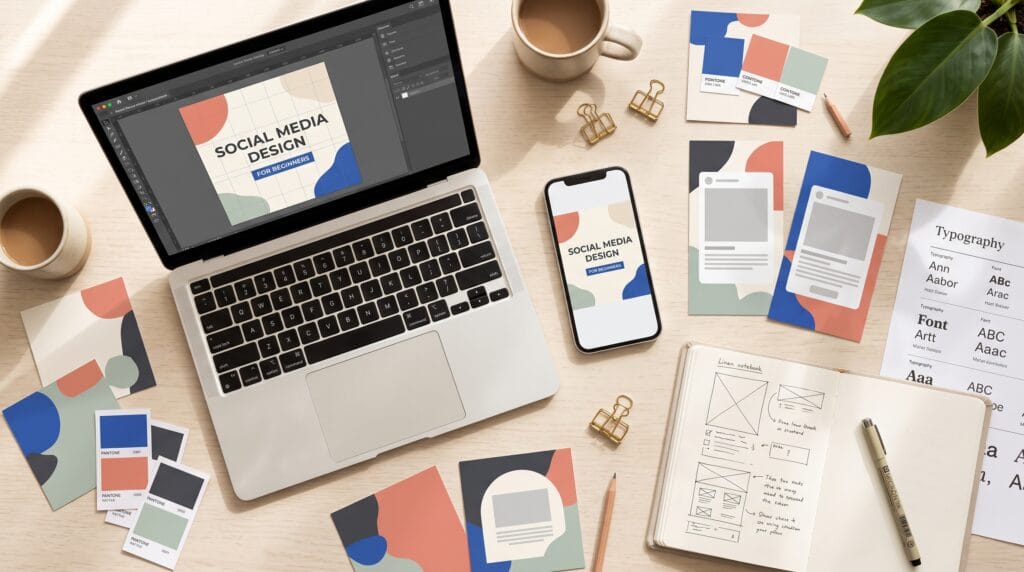
This social media design tutorial helps beginners create posts that look organized, communicate clearly, and feel consistent with their brand. You will learn how to combine text, images, colors, and spacing without overcrowding the design. Whether you share educational tips, promote products, or build a personal brand, these foundations give every post a clearer purpose.
Good design begins before you open an editing tool. First, decide what your audience should understand and what you want them to do next.
You do not need complicated effects or dozens of fonts. A focused message, readable typography, and a repeatable process can make your content easier to recognize and understand.
1. Social Media Design Tutorial with Define Your Message
Start each post with one main idea. Trying to announce a product, explain its features, share a testimonial, and promote a discount in one graphic can overwhelm readers.
Instead, write a short sentence describing the purpose of the post.
For example: “Help new business owners choose a readable font for their first logo.”
That sentence guides your headline, imagery, and supporting details.
Beginner Social Media Design Goals
Decide whether the post should:
- Teach a useful concept.
- Introduce a product or service.
- Answer a common question.
- Invite a conversation.
- Encourage a specific next step.
This social media design tutorial recommends matching the visual structure to the goal. An educational post needs clear information, while a product introduction may benefit from a strong photograph and brief headline.
2. Social Media Design Tutorial with Set Up Your Canvas
Choose the intended placement before creating the layout. A square feed graphic, vertical story, and video cover have different proportions and viewing conditions.
Check the platform’s current requirements when preparing the final asset. Rather than assuming one design fits every placement, create variations that preserve your message.
Plan for Cropping and Interface Elements
Keep essential text and important subjects away from vulnerable edges. Preview how the design appears in the actual placement, including any interface elements covering the image.
A title that looks centered in your editor may become awkward when a feed preview crops it.
Use this social media design tutorial to develop a simple habit, preview first, then export. Also check the image on a phone, where small details may be harder to read.
3. Social Media Design Tutorial with Build a Clear Layout
A layout determines where readers look and how they move through the information.
Begin with three elements: a headline, a main visual, and one supporting detail. Give each element a clear role.
For example, a bakery announcement could place the product photo in the upper area, the product name beneath it, and ordering information at the bottom.
Social Post Layouts With Visual Hierarchy
Create hierarchy through size, weight, spacing, and placement.
Make the headline visibly more prominent than secondary information. Keep related items close together and leave breathing room between separate groups.
Choose a consistent alignment instead of placing every element independently. A shared left edge often makes a design easier to organize.
Following this social media design tutorial means checking the reading order before adding decoration. Readers should understand the central message without searching through competing elements.
Also Read: How to Create Social Media Graphics That Look Professional
4. Social Media Design Tutorial with Choose Readable Typography
Typography affects both personality and comprehension. A stylish font is useful only when readers can understand the words.
Start with one font family that offers different weights, or pair a distinctive headline typeface with a simple supporting style.
Avoid using several decorative fonts in the same post.
Typography for Better Social Media Posts
Keep these habits in mind:
- Use short headlines with deliberate line breaks.
- Make supporting text large enough for phone viewing.
- Provide clear contrast between text and its background.
- Avoid long paragraphs in uppercase.
- Keep spacing consistent across similar posts.
When placing text over a photo, choose a quiet area or add a solid text panel. Shadows alone may not provide enough separation.
This social media design tutorial encourages testing actual words rather than choosing fonts from a sample alphabet.
5. Social Media Design Tutorial with Create a Color System
A small color palette makes repeated content feel connected.
Start with a background color, a main text color, and an accent. Add other colors only when they serve a clear purpose.
For example, a lifestyle creator might use warm ivory backgrounds, dark charcoal text, and muted green accents.
Color Contrast in Beginner Social Designs
Check whether headlines, labels, and essential details remain distinct from their backgrounds.
Do not depend entirely on color to explain information. If a graphic compares two options, label them clearly rather than using red and green alone.
Apply your palette consistently, but allow enough flexibility for different photographs and topics.
In this social media design tutorial, color supports meaning and recognition. It should help the audience understand the post rather than compete with its content.
6. Social Media Design Tutorial with Use Images Intentionally
Choose images that support the subject of the post. A relevant product photograph or practical example usually communicates more than an unrelated decorative picture.
Consider the image’s focal point before placing text. Faces, products, and important details need enough space to remain visible.
Better Image Choices for Social Content
Use your own images or assets you have permission to publish. Check the applicable usage terms before incorporating third-party material.
Maintain a reasonably consistent editing style across related posts. Similar lighting, cropping, or backgrounds can connect a series without making every image identical.
Avoid enlarging small images until they become visibly blurry.
This social media design tutorial also recommends removing unnecessary stickers and illustrations. If an element does not explain, organize, or reinforce the message, consider leaving it out.
Also Read: How to Make Pinterest Pins That Get More Clicks and Saves
7. Social Media Design Tutorial with Organize Carousel Posts
A carousel gives you room to develop an idea across several slides.
Begin with a cover that clearly states the topic. Then arrange the following slides in a logical sequence, with each one making a useful contribution.
For a tutorial, that sequence might include the problem, steps, example, and final recap.
Carousel Design for Clear Visual Storytelling
Give each slide one main point. Use consistent heading positions, margins, and typography so readers can focus on the information.
Avoid splitting a simple sentence across several slides just to increase the slide count.
Make the final slide useful. It could summarize the lesson or suggest a practical exercise.
Apply this social media design tutorial by reviewing the carousel as a complete story. Check that each slide connects naturally with the next.
Build Templates With This Social Media Design Tutorial
Templates help you repeat useful design decisions without rebuilding every post.
Create a few layouts for recurring needs, such as quick tips, product announcements, testimonials, and educational carousels.
Each template should establish headline placement, image space, text styles, and margins.
Reusable Social Media Templates With Flexibility
Test each layout with both short and longer content. A template that works only with a three-word headline may cause problems later.
Set practical limits, such as a brief heading and one supporting sentence. When the content exceeds those limits, choose another layout.
Keep editable source files organized and name templates according to their purpose.
The goal of this social media design tutorial is a repeatable process that still allows thoughtful choices for each message.
Practice With a Beginner Social Media Design Exercise
Create a post titled “Three Ways to Improve Your Product Photos.”
Choose one clear photo and three short tips. Use a simple background, one accent color, and a consistent text alignment.
Step-by-Step Social Post Design Practice
Follow these steps:
- Draft the message: write the headline and tips before designing.
- Choose the format: select a single graphic or short carousel.
- Place the main elements: establish the headline and image first.
- Add supporting text: keep the wording concise.
- Refine the spacing: check margins, alignment, and line breaks.
- Preview on mobile: confirm that every essential detail remains readable.
Create a second version with less decoration. Compare which version makes the information easier to understand.
Ask someone unfamiliar with the project what they notice first and what they think the post means.
Review Your Posts Before Publishing
A final review catches problems that become easy to miss while designing.
Check spelling, image quality, text contrast, and any dates or product details. Confirm that the caption and graphic communicate the same message.
Also consider whether the post fits your other content. Consistency should come from recognizable design choices, not identical layouts.
After publishing, review responses according to the post’s purpose. Helpful questions, saves, website visits, or inquiries may provide useful feedback.
Compare several posts before drawing conclusions. One result can reflect the topic, timing, or audience rather than design alone.
Also Read: How to Make a Poster Design That Looks Eye-Catching
Conclusion – Create Better Posts With Clear Design
This social media design tutorial gives beginners a practical foundation for creating readable, consistent, and purposeful content.
Start with one message. Build a clear layout, choose suitable typography, use images intentionally, and preview the result on a phone.
With regular practice, these decisions become easier. A small collection of flexible templates and a careful review process can help you create posts that represent your brand confidently and give your audience something useful.
For high-quality fonts to boost your income, check out Letter Crafted. Our professional fonts are perfect for branding, marketing, and content creation. So, don’t miss this opportunity.